Species LogBuy

How it works

Four steps, from installing the plugin to bird lists on your tour pages.

  1. 1Set up

    Upload the plugin to your WordPress site and activate it. The world bird list loads itself in the background, and a setup wizard asks which pages are your tours, who can log birds, and how many recent departures the figures should count.

    Then add your departures: one at a time, a run of dates, or a spreadsheet.
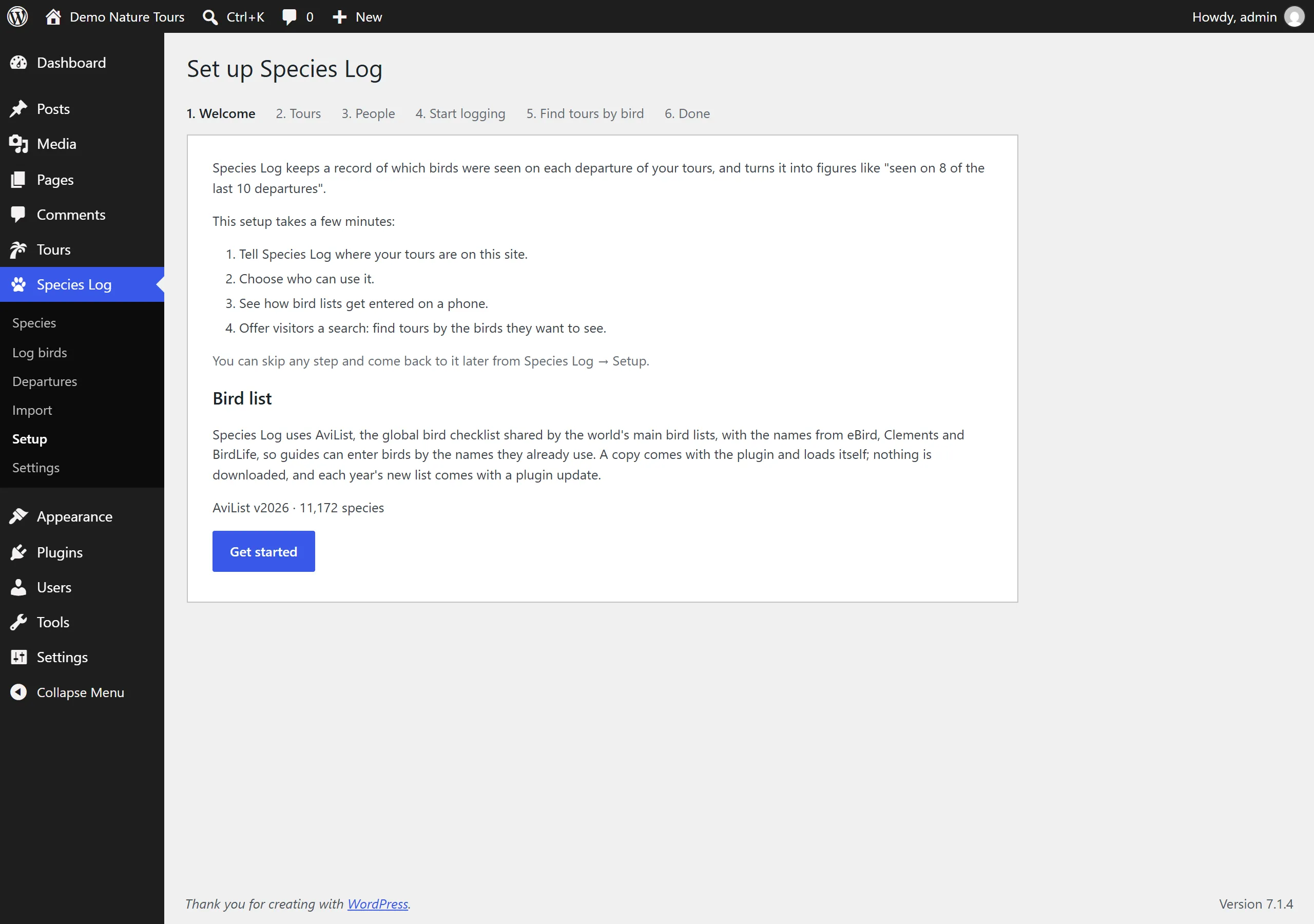
    The Set up Species Log wizard, Welcome step. Steps along the top: Welcome, Tours, People, Start logging, Find tours by bird, Done. The page explains the four parts of setup and that the AviList v2026 bird list, 11,172 species, is already loaded. A Get started button.
    The setup wizard takes a few minutes, and any step can be skipped and done later.
  2. 2Log on the trip

    Each evening, or at the end of the tour, a guide opens Log birds on their phone, picks the departure, and ticks off what the group saw or only heard. They start from the birds seen on that tour before and search for anything new.

    When the list is done, the guide submits it to the office.

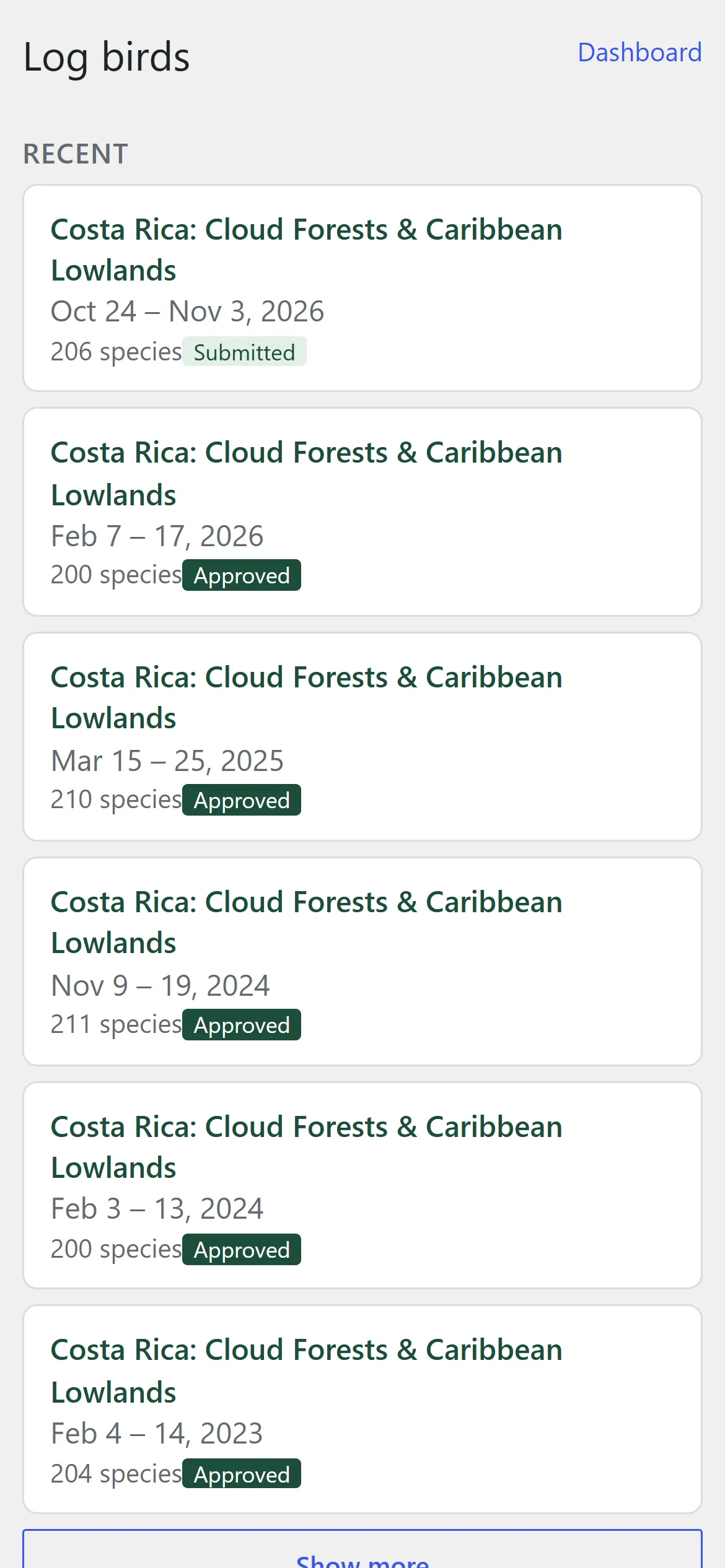
    The Log birds screen on a phone, as a guide sees it: their recent departures of the Costa Rica tour, each with dates and a species count. The newest, Oct 24 to Nov 3, 2026, with 206 species, is marked Submitted; the older ones are marked Approved.
    A guide’s Log birds screen: their departures, the number of species logged, and each list’s state.
  3. 3Approve

    Office staff check the submitted list and approve it. Approving locks the list so it can’t be changed by accident, and records who approved it and when. It can be reopened if something needs fixing.

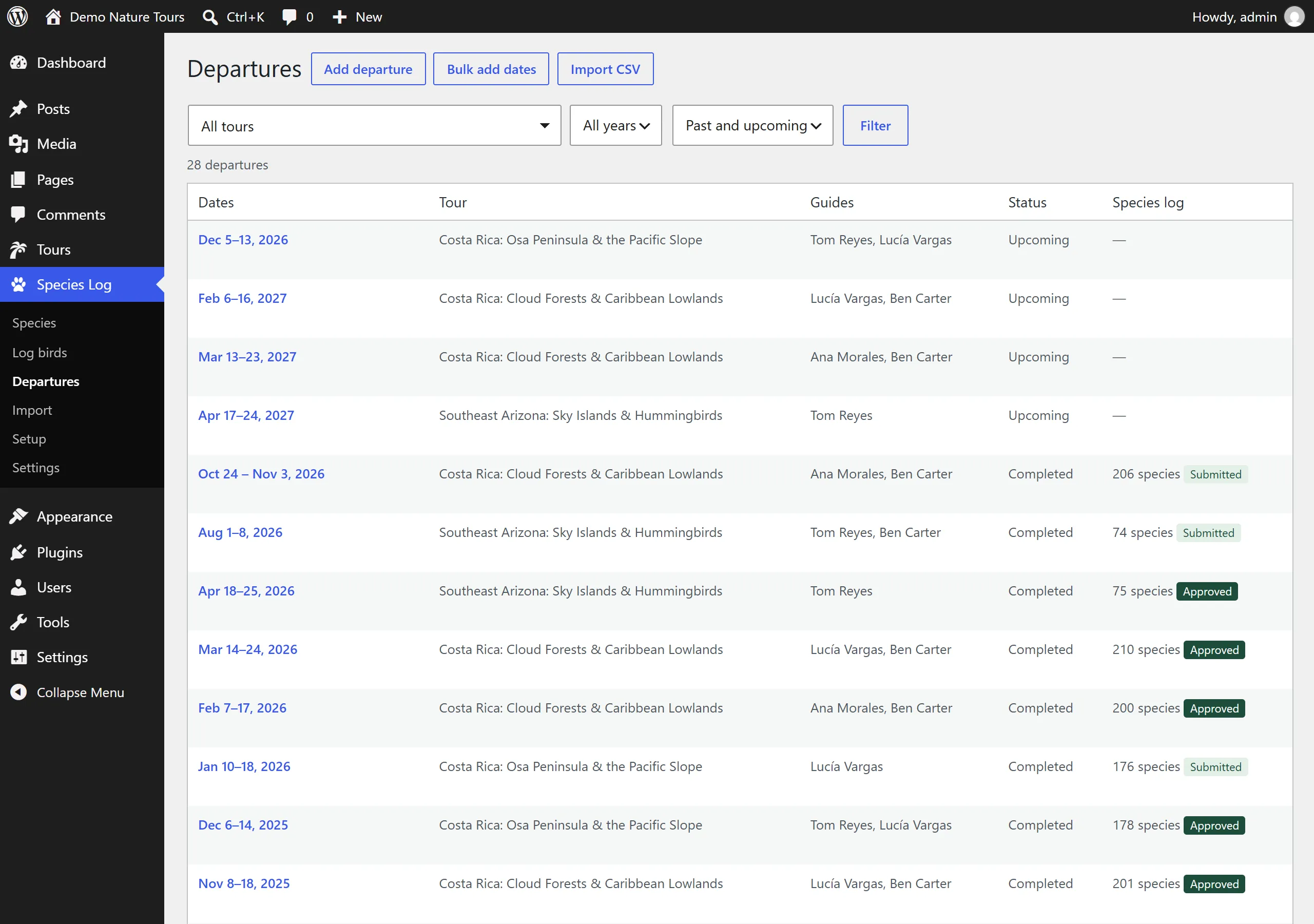
    The Departures screen in the WordPress dashboard. Buttons for Add departure, Bulk add dates and Import CSV; filters for tour, year and past or upcoming. A table lists 28 departures with dates, tour, guides, status (Upcoming or Completed) and the species log, for example "206 species, Submitted" or "210 species, Approved".
    Every departure in one place, with its guides and the state of its bird list.
  4. 4Show on tour pages

    The tour’s page shows every bird recorded on its recent departures, with figures such as “Seen on 9 of the last 10 departures”. Lists show as they’re logged, and the figures update with every new trip.

    Write each trip’s report in WordPress, too, and it shows on the same tour page, with the species total from the log.

    Add a Find tours by bird page too, so visitors can search all your tours for the birds they want.

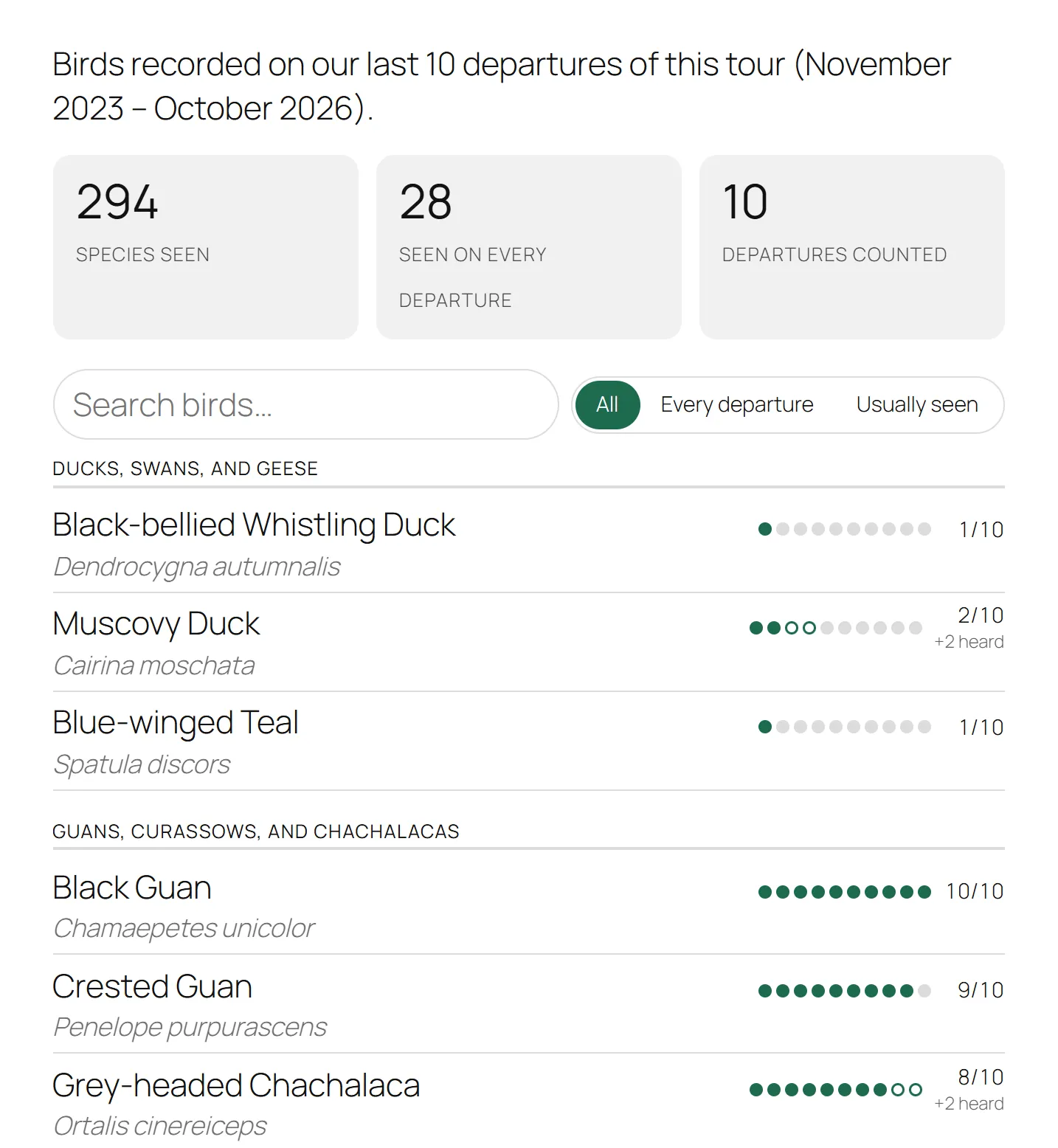
    The bird list on a Costa Rica tour page. Above it: 294 species seen, 28 seen on every departure, 10 departures counted. A search box and filters (All, Every departure, Usually seen), then birds grouped by family, each with a row of ten dots and a figure such as "10/10" for Black Guan or "8/10 +2 heard" for Grey-headed Chachalaca.
    A tour page with its bird list. Each dot is one of the last ten departures; open dots are heard only.

Bring in your past trips

You don’t have to wait a season for figures. Load the trips you’ve already run:

  • Guides’ own eBird downloads. Checklists are matched to departures by date.
  • Old reports and lists. Drop in PDF reports or paste a list. They’re read in your browser and never uploaded.
  • A spreadsheet, using our template.

A review screen shows every bird name that needs a decision, including old names of species that have since been split. Every import can be undone.

Want your old trip lists loaded for you? Ask us.

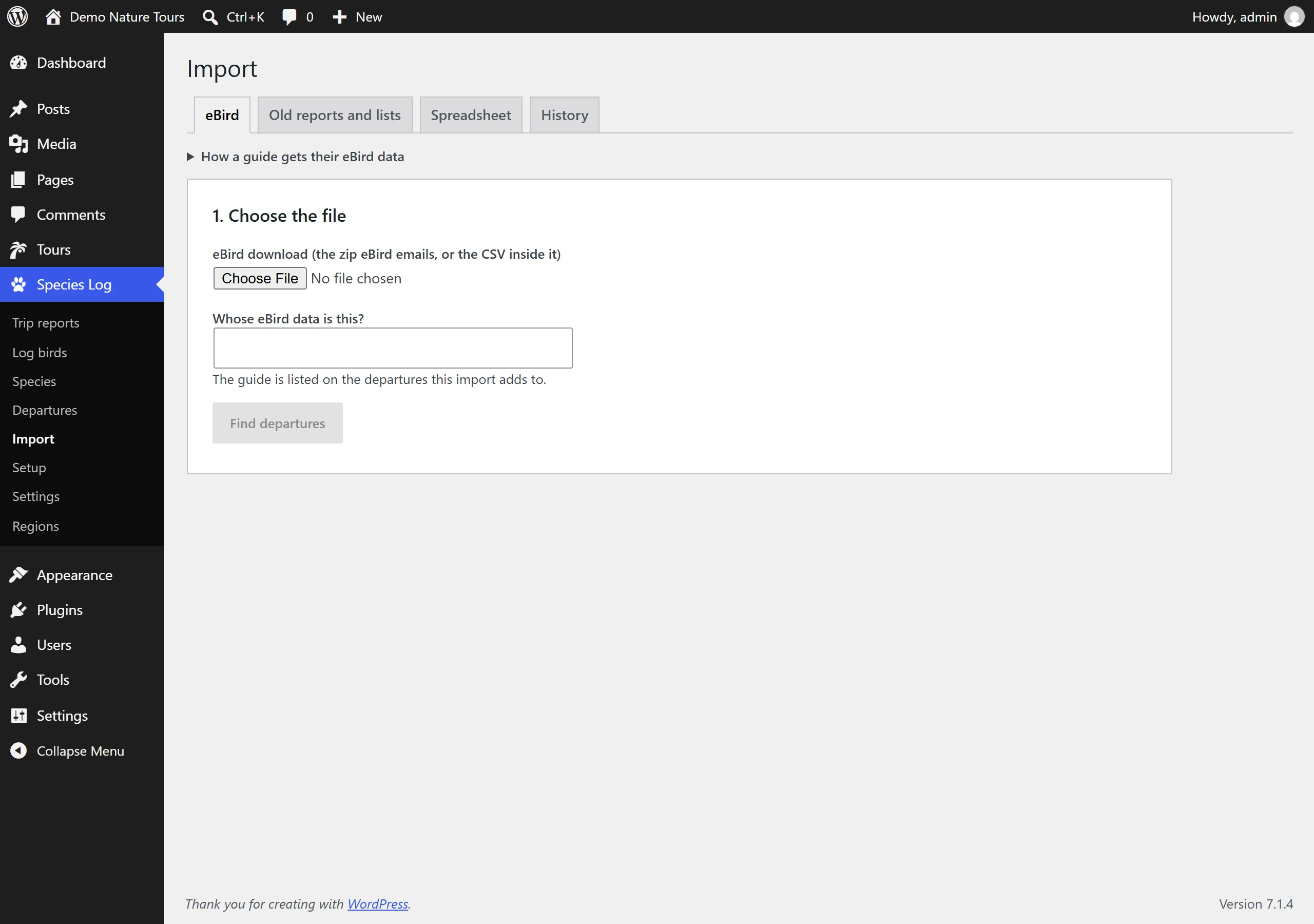
The Import screen in the WordPress dashboard, with tabs for eBird, Old reports and lists, Spreadsheet and History. The eBird tab is open: choose the guide’s eBird download, say whose data it is, then Find departures.
Bring in past trips from guides’ own eBird downloads, old reports and lists, or a spreadsheet. Every import can be undone from History.

Use it on your tours

$249 a year for one site. Try it free for 30 days.